
If you are starting your journey in software development or DevOps, you have probably heard the term Docker. At the heart of Docker is a fundamental concept called a Docker Image.
In this article, we will explain what a Docker Image is, how it works, and how it is different from a Docker Container in very simple terms.
What is a Docker Image? (Simple Definition)
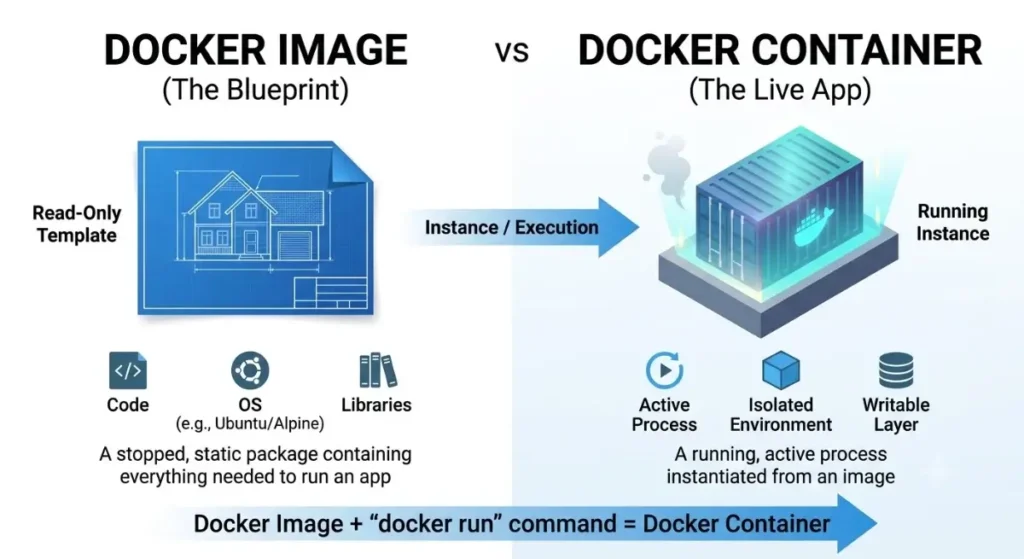
A Docker Image is a lightweight, read-only file that contains everything needed to run a software application.
Think of a Docker Image as a Blueprint or a Recipe:
- A recipe tells you all the ingredients and steps to make a cake, but it is not the cake itself.
- Similarly, a Docker Image contains the code, tools, libraries, and settings needed to run an application, but it is not the running program itself.
- For a deeper technical dive, you can read the official Docker Documentation on Container Images official how to start
Docker Image vs. Docker Container: What is the Difference?
Beginners often confuse Docker Images with Docker Containers. Here is the easiest way to understand the difference:
| Feature | Docker Image | Docker Container |
| What is it? | A blueprint or template (Read-Only) | A running instance of an image (Active/Live) |
| Analogy | A cake recipe | The actual baked cake |
| State | Stopped / Static | Running / Dynamic |
Key Takeaway: You use one Docker Image to create and run multiple identical Docker Containers.
What is Inside a Docker Image?
A Docker Image is built in Layers. Each layer adds something useful to the application:
- Base Operating System: A small OS layer (like Ubuntu or Alpine Linux).
- Runtime Environment: The tool needed to run your code (like Node.js, Python, or Java).
- Application Code: The actual code you wrote.
- Settings & Dependencies: External libraries and variables required by the app
How to Create a Docker Image (Quick Example)
To build a custom Docker Image, you write a simple text file called a Dockerfile. Here is a simple example of a Dockerfile for a Node.js application:
# Step 1: Choose a base image
FROM node:18-alpine

# Step 2: Set the working directory inside the container
WORKDIR /app

# Step 3: Copy package files and install dependencies
COPY package*.json ./
RUN npm install

# Step 4: Copy the application code
COPY . .

# Step 5: Specify the command to start the app
EXPOSE 3000
CMD ["npm", "start"]
Once you build this file, Docker creates a Docker Image ready to be used anywhere.
Useful Basic Commands
Here are three basic commands every beginner should know:
- Download an image from Docker Hub: Bash (docker pull ubuntu)
- View all images saved on your computer: Bash (docker images)
- Run a container from an image: Bash (docker run -d -p 3000:3000 my-node-app)
Summaries
A Docker Image solves the famous developer problem: “It works on my machine, but not on the server.” Because a Docker Image packages everything together, your application will run exactly the same way on your laptop, a colleague’s computer, or a cloud server.