
Full Website Screenshot Capture
Capture full-page webpage screenshots instantly by entering any URL below.
Website Screenshot – Capture an Entire Web Page Instantly
Sometimes you need a screenshot of an entire website page—not just the part visible on your screen.
Maybe you want to save a webpage for reference, capture a long landing page, check how a website looks, share a website design with someone, or keep a record of a webpage.
The problem is that a normal screenshot usually captures only the visible part of the screen.
Our Full Website Screenshot Online tool makes this easier.
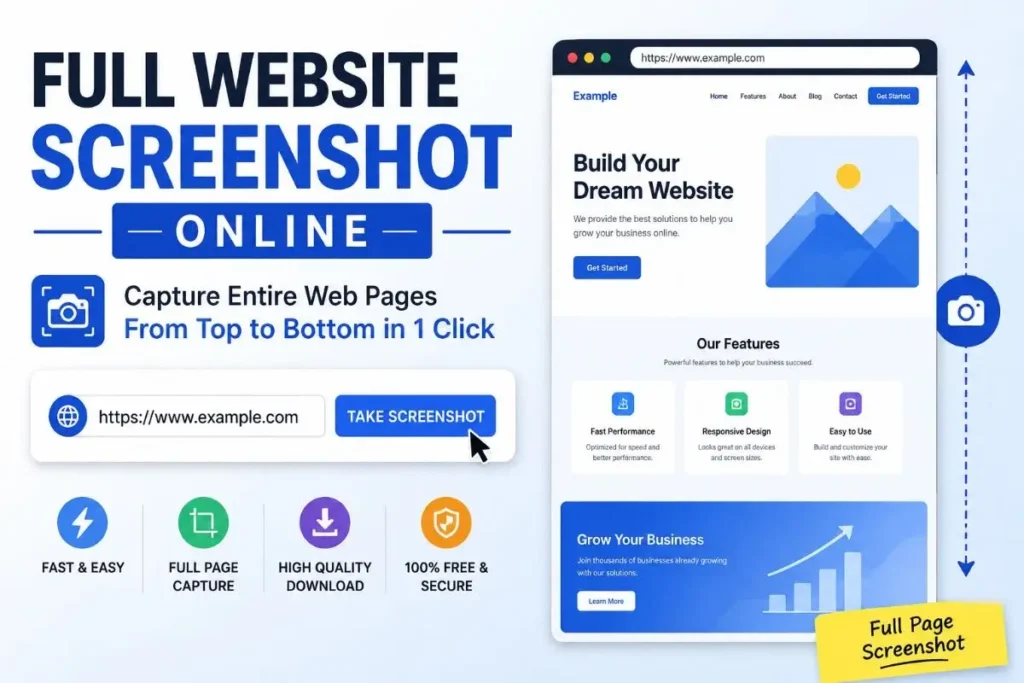
Simply enter the website URL, click the screenshot button, and the tool captures the full webpage from top to bottomfor you.
No complicated software. No browser extensions. No manual scrolling and stitching screenshots together.
What Is a Full Website Screenshot?
A full website screenshot is an image of an entire webpage, including content that is below the visible area of your screen.
For example, imagine a webpage is 5,000 pixels tall. Your laptop screen may show only around 800 pixels at one time. A normal screenshot captures only those 800 pixels.
A full-page screenshot captures the complete webpage, from the top header to the bottom of the page. This is especially useful for long homepages, landing pages, articles, portfolios, product pages, and other websites.
Full Website Screenshot Online
You can also use our these tools:
With our online full website screenshot tool, you don’t need to install any special software.
How to take a full website screenshot online
- Open the Full Website Screenshot Online tool.
- Copy the URL of the webpage you want to capture.
- Paste the URL into the tool.
- Click the screenshot button.
- Wait while the webpage is captured.
- Download your full-page screenshot.
That’s it.
You can capture a webpage without manually scrolling from top to bottom.
Why Use an Online Full Page Screenshot Tool?
Taking a full webpage screenshot manually can be frustrating, especially when the page is very long. An online screenshot tool can save time and make the process much easier.
It can be useful for:
- Website designers
- Developers
- SEO professionals
- Bloggers
- Students
- Researchers
- Digital marketers
- Freelancers
- Business owners
- Website owners
For example, a web designer may want to save a client’s existing website before making design changes. An SEO professional may want to keep a visual record of a webpage. A student may want to save a long online resource for reference.
Instead of taking many screenshots, you can capture the entire page in one go.
Screenshot an Entire Website Without Scrolling
One of the biggest advantages of a full-page screenshot is that you don’t have to capture the webpage section by section.
A normal screenshot might look like this:
Screenshot 1 → Scroll → Screenshot 2 → Scroll → Screenshot 3 → Scroll → Screenshot 4
This can take time, and joining all those screenshots together can be even more annoying.
A full website screenshot tool handles the long webpage capture for you.
Just provide the URL and let the tool do the work.
Can I Screenshot an Entire Website?
Yes, you can screenshot an entire webpage from top to bottom using a full-page screenshot tool.
The important difference is between a normal screenshot and a full-page screenshot.
A normal screenshot captures the visible screen area, while a full-page screenshot captures the complete webpage, including content that is outside the current viewport.
Keep in mind that extremely large, interactive, password-protected, or restricted webpages may sometimes behave differently depending on how the website is built.
How Can I Capture a Full Page Screenshot Online for Free?
- You can capture a full-page screenshot online by using a web-based screenshot tool.
- Simply enter the URL of the webpage you want to capture and start the screenshot process.
- There is no need to manually scroll through the entire webpage and take multiple screenshots.
- Our Full Website Screenshot Online tool is designed to make this process quick and simple.
How to Take a Picture of a Website?
If by “picture of a website” you mean an image of the complete webpage, the easiest method is to use a full-page website screenshot tool.
Copy the webpage URL, paste it into the tool, and generate the screenshot.
This is particularly useful when you want a visual copy of a webpage rather than saving the webpage as an HTML file.
How to Take Full Website Screenshot on Mobile?
On a mobile phone, taking a screenshot of a very long webpage can be difficult because the screen is small and you may need to scroll several times.
A full website screenshot tool can make this easier.
Instead of trying to capture every section manually on your phone, open the online tool, enter the webpage URL, and generate a full-page screenshot.
You can then save the resulting image to your device.
Who Can Use a Full Website Screenshot Tool?
Almost anyone who works with websites can benefit from it.
- Website owners can keep visual records of their pages.
- Designers can save website designs for inspiration or documentation.
- Developers can capture pages before and after making changes.
- SEO professionals can create visual records of important pages.
- Students and researchers can save long webpages for reference.
- Freelancers can use screenshots when preparing website audits or client reports.
Capture a Full Website in Seconds
You don’t always need complicated screenshot software to save a complete webpage. If you have the URL, a full-page website screenshot tool can make the process much simpler.
Paste the URL, capture the complete webpage, and download the screenshot.
Try our Full Website Screenshot Online tool and capture an entire webpage without manually scrolling and taking multiple screenshots.
Frequently Asked Questions
Can I screenshot an entire website?
Yes. You can capture an entire webpage from top to bottom using a full-page website screenshot tool. It captures content beyond the visible screen area.
How can I capture a full page screenshot online for free?
Use an online full-page screenshot tool. Enter the webpage URL, start the capture, and download the generated screenshot.
How to take a picture of a website?
If you want an image of the complete webpage, use a full website screenshot tool. Enter the URL and generate a full-page screenshot.
How to take full website screenshot in mobile?
On mobile, you can use an online full website screenshot tool instead of manually scrolling and capturing multiple screenshots. Enter the webpage URL and generate the complete screenshot.
Can I screenshot a very long webpage?
Yes, a full-page screenshot tool is specifically useful for long webpages because it can capture content that is not visible on your screen at once.
Do I need to install software to take a website screenshot?
Not necessarily. An online website screenshot tool can let you capture webpages directly through your browser without installing dedicated screenshot software.